Professional Close All Positions Panel
ONE-CLICK CLOSE ALL POSITIONS – PROFESSIONAL TRADING PANEL
// See attached MQ5 file for full source code
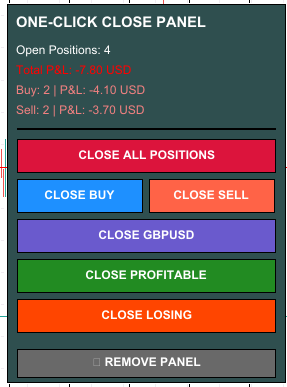
Emergency position management made easy with this powerful visual panel.
🎯 WHAT IT DOES
Professional Expert Advisor that adds a sleek control panel to your chart for instant position closing with advanced filtering options. Perfect for emergency situations, news events, or quick risk management decisions.
✨ KEY FEATURES
– Close ALL positions instantly with one click
– Close only BUY positions
– Close only SELL positions
– Close positions for current symbol only
– Close only PROFITABLE positions
– Close only LOSING positions
– Real-time position counter and P&L display
– Color-coded profit/loss indicators (green=profit, red=loss)
– Safety confirmation dialogs showing P&L before closing
– Easy panel removal button
– Fully customizable colors and panel position
– Works on ALL symbols and timeframes
– Zero lag with instant execution
🛡️ SAFETY FIRST
Every close action requires your confirmation with a dialog showing the exact P&L amount before execution. You’ll never accidentally close positions.
💡 PERFECT FOR
✓ Emergency position exits during unexpected news
✓ Quick profit-taking when target is reached
✓ Rapid loss cutting to protect your account
✓ End-of-day position cleanup
✓ Professional risk management
✓ Scalpers and day traders
✓ News traders who need instant exits
🎨 FULL CUSTOMIZATION
– Choose panel position (any of 4 corners)
– Customize X and Y distance from corner
– Change all colors (background, buttons, text)
– Professional color schemes included
📊 REAL-TIME INFORMATION
The panel continuously updates showing:
– Total open positions count
– Total P&L in your account currency
– Buy positions count and P&L
– Sell positions count and P&L
– Everything color-coded for instant clarity
⚙️ INPUT PARAMETERS
All settings are simple and well-documented:
– Panel Corner – Choose display location
– Panel X/Y Distance – Fine-tune position
– Colors – Background, buttons, text
– All parameters have clear descriptions
🚀 SUPER EASY TO USE
1. Drag EA onto any chart
2. Enable AutoTrading (green button in toolbar)
3. Panel appears automatically
4. Click any button to close positions
5. Confirm the action
6. Done! Remove panel when finished
⚡ HIGH PERFORMANCE
– Ultra-lightweight code
– No CPU overhead or memory issues
– Instant button response
– Handles 100+ positions with ease
– No lag even during high volatility
✅ TESTED & RELIABLE
Thoroughly tested on multiple brokers, account types, and market conditions. Includes comprehensive error handling, detailed logging, and smart order filling modes (FOK/IOC/RETURN) for maximum compatibility.
🆓 COMPLETELY FREE
– No hidden costs
– No limitations on positions
– No expiration date
– No trial period
– 100% free forever
📞 EXCELLENT SUPPORT
Have questions or issues? Leave a comment and I’ll respond quickly! I’m committed to helping users get the most out of this tool.
⭐⭐⭐⭐⭐ PLEASE RATE IF HELPFUL! ⭐⭐⭐⭐⭐
If this EA saves you time or money, please take 10 seconds to rate it!
Your rating helps other traders discover this free tool.
Thank you for your support! 🙏
—
📥 INSTALLATION INSTRUCTIONS
1. Download the file
2. Open MetaTrader 5
3. Open MetaEditor (press F4 or Tools → MetaQuotes Language Editor)
4. File → Open Data Folder
5. Copy the EA file to MQL5 → Experts folder
6. Restart MT5 or refresh Navigator (right-click → Refresh)
7. Drag “OneClickCloseAll” from Navigator → Expert Advisors onto any chart
8. Click “OK” on the settings window
9. Ensure “AutoTrading” button is enabled (green) in toolbar
10. Panel appears on your chart – ready to use!
⚠️ IMPORTANT REQUIREMENTS
– MetaTrader 5 platform
– AutoTrading must be enabled (green button)
– Works on any symbol and timeframe
– Demo and live accounts supported
– All brokers compatible
🔧 TROUBLESHOOTING
If buttons don’t work:
1. Check AutoTrading is ON (green button)
2. Check Tools → Options → Expert Advisors → “Allow automated trading” is checked
3. Recompile the EA if needed (F7 in MetaEditor)
4. Check Experts tab for error messages
💬 FEEDBACK WELCOME
I’m always looking to improve! If you have feature requests or suggestions, please leave a comment.
—
VERSION HISTORY
v1.00 – Initial release
– Six position closing filters
– Real-time P&L display
– Safety confirmations
– Full customization
– Professional GUI
—
🎁 MORE FREE TOOLS COMING SOON
Follow me for more free trading utilities!